
How to edit a TTF font
Edit a TTF (or OTF) font on your phone or tablet: open it, change glyphs or metrics, validate the result, and export — the complete editing loop, on one device.
You can edit an existing TTF (or OTF) font entirely in Font Studio: open the file, change the glyphs or metrics you care about, check the font's health, and export the modified file — all on one device, with the original never overwritten. This guide walks through each step of the loop.
What you'll learn
- How to open a font and inspect it before touching anything
- Which edits live where — and which ones need Pro
- How to validate the result before exporting
- How to export the modified font
Step 1 — Open and inspect
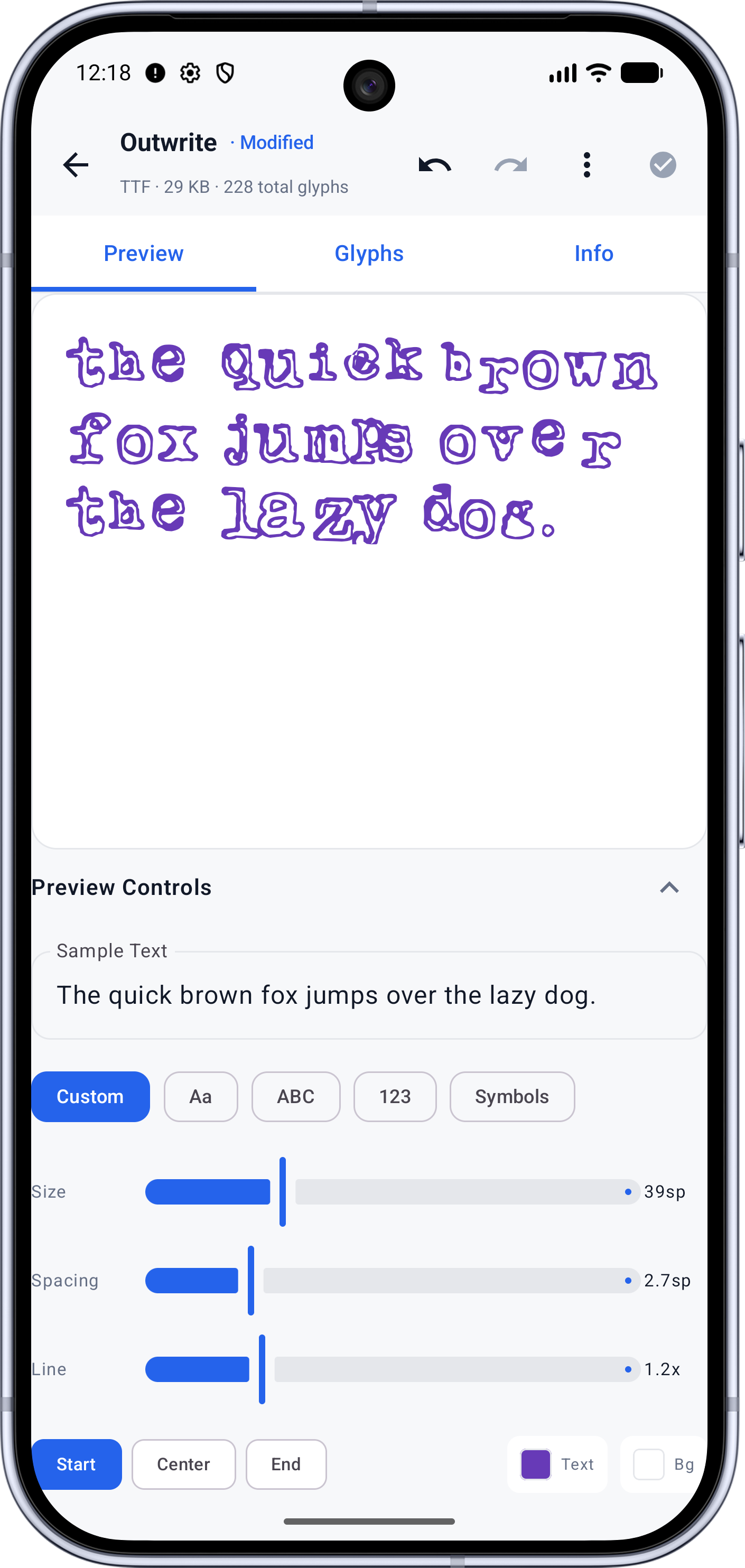
Open the font in the workspace (TTF, OTF or WOFF). Before changing anything, look at what you have: the Font Inspector shows the metadata and metrics, the Unicode Explorer shows the character coverage, and a Font Health scan reveals structural problems you might otherwise mistake for design choices.
Two minutes of inspection routinely saves twenty minutes of editing the wrong file — or editing a file that was already broken.
Step 2 — Make your edits
Different edits live in different tools:
| You want to change | Where | Requires | | --- | --- | --- | | Outline shapes | Glyph Designer | Pro | | Advance widths, side bearings, kern pairs | Metrics & kerning | Pro | | Names, version, metadata | Font Engineering | Pro | | Character set (remove or add glyphs) | Glyph removal, glyph replacement | Free / Pro | | Format, packaging | Export | Free |
Each tool either applies its result to the workspace as an undoable step or
saves a new file with a suffix like _edited or _repaired — your original
stays intact either way.
Step 3 — Validate
Run Font Health on the edited font before you ship it anywhere. An edit that "worked" can still leave the file worse for wear; the scan catches that, and the repair flow can fix what it finds in the same session.
Step 4 — Export
Save the file, or use the Export tool for a packaged destination — web or Android — with CSS and project files included. The full map of exits is in Importing & exporting fonts.
What to try next
- Stripping characters you never ship? How to remove unused glyphs from a font
- Fixing a file that misbehaves? How to repair a corrupted font
- Building something new instead of editing? How to create a font on Android
Full documentation