
Replacing one emoji in Noto Color Emoji (CBDT/CBLC, no glyf table)
Bitmap emoji fonts have no outlines to edit — that's why your tools say 'no glyf table'. Swap individual PNGs in a CBDT/CBLC font on device, free, and export it.
The CBDT build of Noto Color Emoji — the one most Android devices ship — is a
10.7 MB file of which 99% is PNG bitmaps: 10,636,164 bytes of CBDT image
data, 16,132 bytes of CBLC strike locator, a 53,880-byte GSUB for the ZWJ
sequences, and no glyf, no loca, no CFF . Open it in an outline-based
font editor and you get the same wall every time: "no glyf table." The font
isn't broken — it just has no outlines to edit.
Font Studio takes a different route: it decodes the bitmap strikes, shows every emoji as a real thumbnail, and lets you swap individual PNGs — free — then export the repacked font or a ZIP of the images. This guide walks through replacing a single emoji in a CBDT/CBLC font, on the device, without a desktop anywhere in the loop.
Why these fonts have no outlines
Color emoji fonts come in three flavors:
| Format | How glyphs are stored | Typical size |
|---|---|---|
| CBDT/CBLC (bitmap) | PNG bitmaps in CBDT, sizes/locations in CBLC | ~10 MB |
| sbix (bitmap) | PNG/JPEG in bitmap strikes (Apple) | ~10 MB+ |
| COLR/CPAL (vector) | Glyph outlines in glyf, colored layers via COLR | ~3–10 MB |
The CBDT build of Noto Color Emoji is pure bitmap: every emoji is a raster
image at a fixed set of sizes (the "strikes"). There is nothing for an outline
editor to grab — the glyf table that tools look for first simply doesn't
exist. (Newer Google builds ship COLR/CP instead — the one on a current
Android emulator here is 2.99 MB with a 1.86 MB glyf and an 828 KB COLR —
but the CBDT build is still what most devices and older system images carry.)
Bitmap strikes also explain the size: the file we opened reports 4,046 total
glyphs backing 1,510 mapped characters — the multiplication comes from flag
sequences and ZWJ compositions resolved through that 53 KB GSUB.
Step 1 — Open the font and browse the real thumbnails
Copy the .ttf to your phone, then Home → Open Font and pick it. The
workspace opens on the Preview tab; switch to the Glyphs tab. Because the
font is recognized as emoji-capable, the grid shows decoded emoji images —
not monochrome fallback glyphs rendered through the platform font.
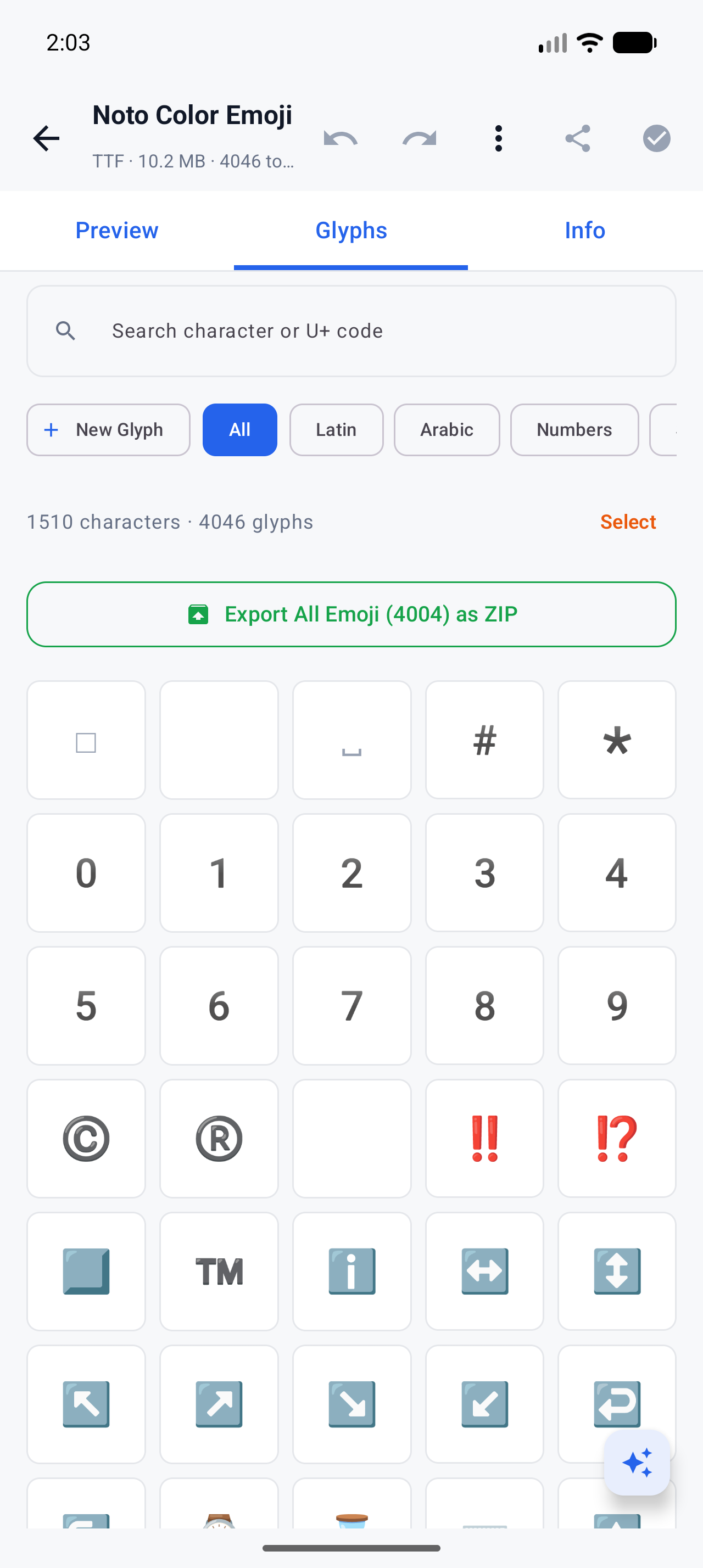
Search works by character or code: type 1F600 in the Search character or
U+ code field to jump straight to grinning face.
Step 2 — Replace one emoji
Tap an emoji and its detail sheet opens with the codepoint, decimal value and glyph ID. The action you want is:
Replace Image — Swap this PNG emoji with a new one
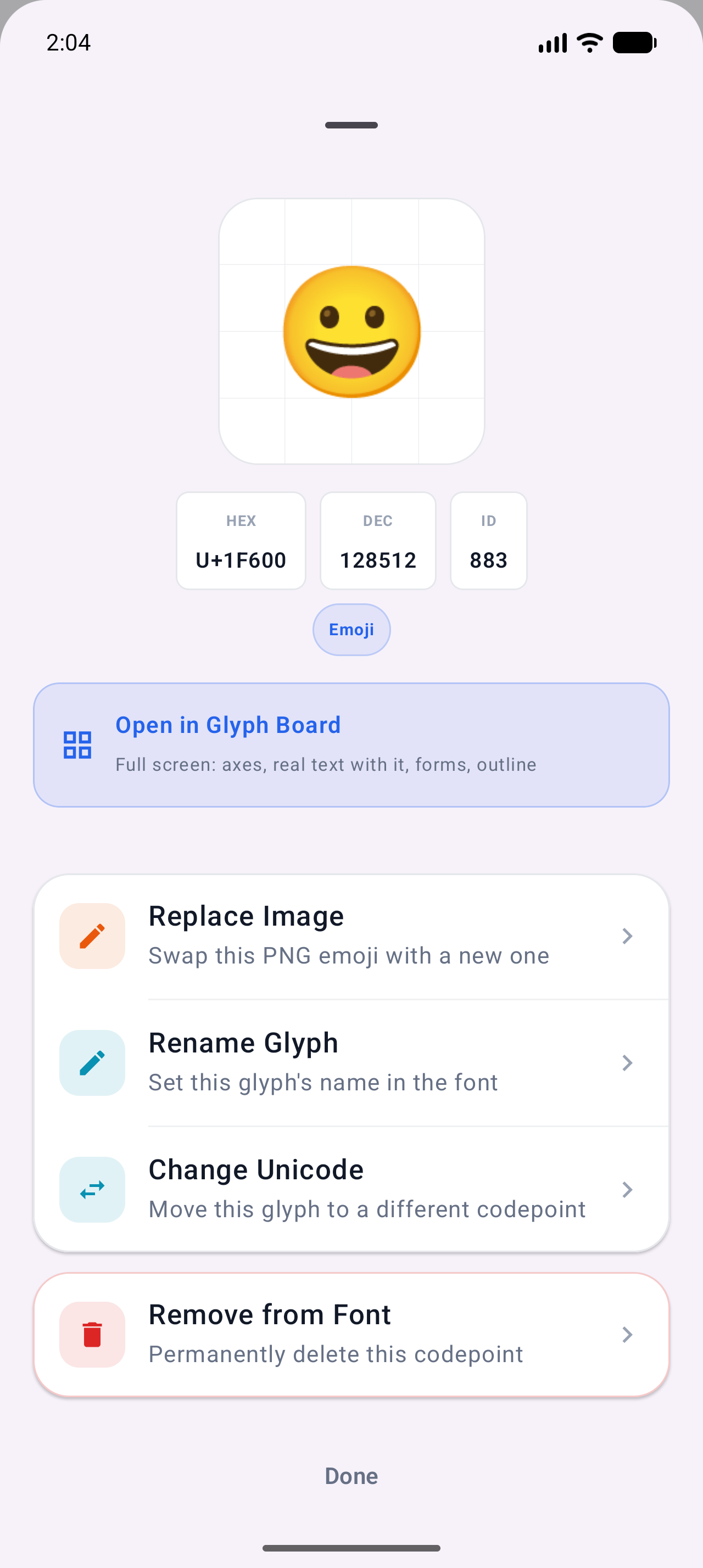
Pick the replacement image, confirm, and the new PNG is repacked into the
CBDT strike data for that glyph — the CBLC bookkeeping is rewritten to
match, and the change lands in the project as one undo step, exactly like
"Remove This Glyph". Nothing else in the font is touched: same characters, same
GSUB sequences, same everything, one bitmap swapped.
Replace This Emoji is free. The batch version — select many emoji and swap them in one pass — is Pro.
Step 3 — Export and verify
Two routes out:
- Export Font → Font file to save the modified
.ttfand use it anywhere the original would install; - Export All Emoji (N) as ZIP (free) to pull every bitmap out as PNG images — on the font opened for this guide the button read Export All Emoji (4004) as ZIP, and selecting a subset exports just those.
To verify the swap, re-share the exported font to any app that renders custom
fonts, and check the one codepoint you changed — U+1F600 in the walk-through
above. The rest of the set is byte-identical to what went in.
Things worth knowing before you start
Note The repacked font keeps the CBDT/CBLC format. Apps that don't support bitmap color fonts (mostly older desktop software) will show blank glyphs — that's a limitation of the format on their side, not of your edit.
- Modifying Noto Color Emoji is fine for personal use; distributing a derivative means checking the font's licence (Noto is OFL, but other emoji fonts may not be).
- Swapping one emoji doesn't change its Unicode identity — you're changing the picture, not the character. Re-mapping a codepoint to a different character is a separate operation (Change Unicode in the same sheet) and usually a bad idea for emoji, since input methods and ZWJ sequences depend on the standard mapping.
- On COLR/CPAL emoji fonts (the newer vector builds) the per-glyph action is Recolor Glyph / palette editing instead of PNG replacement — the sheet shows what applies to the font you opened.
What to try next
- Building an emoji font from your own images, not just editing one: Create a custom emoji font
- The general color-font landscape: Color & emoji fonts
Full documentation